
This link has been bookmarked by 3167 people and liked by 1 people. It was first bookmarked on 01 Mar 2011, by A. D..
-
24 Jun 15
-
10 Jan 15
-
15 Nov 13
-
30 Jul 13
-
19 Feb 13
-
- 1Open Settings App
- 2Tap Safari
- 3Turn "Always Show Bookmarks Bar" and "JavaScript" on
-
-
-
- 1Open Settings App
- 2Tap Safari
- 3Turn "Always Show Bookmarks Bar" and "JavaScript" on
-
-
-
- 1Open Settings App
- 2Tap Safari
- 3Turn "Always Show Bookmarks Bar" and "JavaScript" on
-
-
-
5Back to the list, then tap "Done" to save changes
-
-
18 Feb 13
-
-
5Back to the list, then tap "Done" to save changes
-
-
-
- 1Open Settings App
- 2Tap Safari
- 3Turn "Always Show Bookmarks Bar" and "JavaScript" on
-
-
-
-
Installing "Web Highlighter" on iPad Safari
-
Installing the Web Highlighter bookmarklet enables you to easily highlight and bookmark webpages in iPad Safari, just like in iBooks.
-
Safari
-
settings if necessary
-
Step 1: Adjust your
-
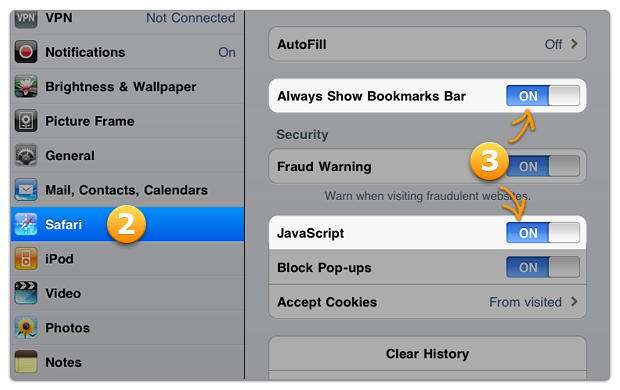
- 1Open Settings App
- 2Tap Safari
- 3Turn "Always Show Bookmarks Bar" and "JavaScript" on
-
Step 2: Bookmark this page
-
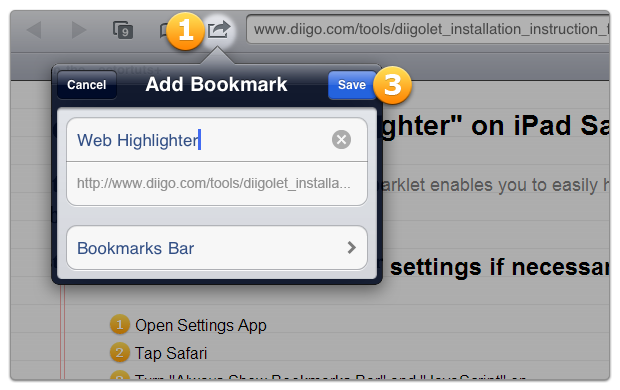
- 1Tap the "Action" icon in the Safari toolbar
- 2Tap "Add Bookmark"
- 3Choose "Bookmarks Bar", then click "Save"
-
Step 3: Edit the bookmark
-
- 1Tap the bookmark icon in the Safari toolbar
- 2Tap "Edit", then select the "Web Highlighter" (The bookmark that you just created in step 1)
- 3Tap its URL, then tap the "clear" to clear it
- 4Tap and hold URL field for the magnifying glass, then tap "Paste"
- 5Back to the list, then tap "Done" to save changes
-
Step 4: Done!
-
- 1Tap the Web Highlighter in the bookmarks bar, then a toolbar will show up
- 2Select some text on page
- 3Tap the Highlight button in the toolbar to highlight the text
You've enabled the Web Highlighter for iPad. You can test it on this page now!
-
-
-
Installing the Web Highlighter bookmarklet enables you to easily highlight and bookmark webpages in iPad Safari, just like in iBooks.
-
-
-
Installing the Web Highlighter bookmarklet enables you to easily highlight and bookmark webpages in iPad Safari, just like in iBooks.
-
-
-
Highlighter
-
-
-
- 1Open Settings App
- 2Tap Safari
- 3Turn "Always Show Bookmarks Bar" and "JavaScript" on
Step 1: Adjust your Safari settings if necessary
-
3Tap the Highlight button in the toolbar to highlight the text
-
-
17 Feb 13
-
- 1Tap the bookmark icon in the Safari toolbar
- 2Tap "Edit", then select the "Web Highlighter" (The bookmark that you just created in step 1)
- 3Tap its URL, then tap the "clear" to clear it
- 4Tap and hold URL field for the magnifying glass, then tap "Paste"
- 5Back to the list, then tap "Done" to save changes

-
-
-
1Tap the "Action" icon in the Safari toolbar
-
-
-
Installing the Web Highlighter bookmarklet enables you to easily highlight and bookmark webpages in iPad Safari, just like in iBooks.
-
-
 Ralph Kerle
1Tap the bookmark icon in the Safari toolbar
2Tap "Edit", then select the "Web Highlighter" (The bookmark that you just created in step 1)
3Tap its URL, then tap the "clear" to clear it
4Tap and hold URL field for the magnifying glass, then tap "Paste"
5Back to the list, then tap "Done" to save changes-
- 1Tap the bookmark icon in the Safari toolbar
- 2Tap "Edit", then select the "Web Highlighter" (The bookmark that you just created in step 1)
- 3Tap its URL, then tap the "clear" to clear it
- 4Tap and hold URL field for the magnifying glass, then tap "Paste"
- 5Back to the list, then tap "Done" to save changes
-
-
-
Installing the Web Highlighter bookmarklet enables you to easily highlight and bookmark webpages in iPad Safari, just like in iBooks.
-
-
16 Feb 13
-
-
- 1Tap the Web Highlighter in the bookmarks bar, then a toolbar will show up
- 2Select some text on page
- 3Tap the Highlight button in the toolbar to highlight the text
-
-
-
You've enabled the Web Highlighter for iPad. You can test it on this page now!
-
-
-
- 1Tap the Web Highlighter in the bookmarks bar, then a toolbar will show up
-
- 2Select some text on page
-
-
-
- 1Tap the Web Highlighter in the bookmarks bar, then a toolbar will show up
- 2Select some text on page
- 3Tap the Highlight button in the toolbar to highlight the text
-
-
-
icon in the Safari
-
-
-
- 1Tap the Web Highlighter in the bookmarks bar, then a toolbar will show up
- 2Select some text on page
- 3Tap the Highlight button in the toolbar to highlight the text
-
-
-
You've enabled the Web Highlighter for iPad. You can test it on this page now!
-
-
-
- 1Tap the "Action" icon in the Safari toolbar
- 2Tap "Add Bookmark"
- 3Choose "Bookmarks Bar", then click "Save"
-
-
-
page now!
-
-
-
Step 1: Adjust your Safari settings if necessary
-
-
15 Feb 13
-
- 1Tap the Web Highlighter in the bookmarks bar, then a toolbar will show up
- 2Select some text on page
- 3Tap the Highlight button in the toolbar to highlight the text
-
-
-
Always
-
Always
-
Always
-
-
-
- 1Tap the Web Highlighter in the bookmarks bar, then a toolbar will show up
- 2Select some text on page
- 3Tap the Highlight button in the toolbar to highlight the text
-
-
14 Feb 13
-
- 1Tap the Web Highlighter in the bookmarks bar, then a toolbar will show up
- 2Select some text on page
- 3Tap the Highlight button in the toolbar to highlight the text
You've enabled the Web Highlighter for iPad. You can test it on this page now!
-
-
-
Step 3: Edit the bookmark
-
-
-
Step 1: Adjust your Safari settings if necessary
-
Adjust
-
-
-
- 1Open Settings App
- 2Tap Safari
- 3Turn "Always Show Bookmarks Bar" and "JavaScript" on
-
-
-
- Tap the Highlight button in the toolbar to highlight the text
-
-
-
Step 1: Adjust your Safari settings if necessary
-
Settings
-
3Turn "Always Show Bookmarks Bar" and "JavaScript" on
-
-
13 Feb 13
-
Turn "Always
-
-
-
- 1Tap the Web Highlighter in the bookmarks bar, then a toolbar will show up
-
2Select
-
-
-
Safari
-
-
-
You've enabled the Web Highlighter for iPad. You can test it on this page now!
-
-
-
- 1Tap the "Action" icon in the Safari toolbar
- 2Tap "Add Bookmark"
-
-
-
- 1Tap the Web Highlighter in the bookmarks bar, then a toolbar will show up
- 2Select some text on page
- 3Tap the Highlight button in the toolbar to highlight the text
-
-
-
changes
-
-
-
- 1Open Settings App
- 2Tap Safari
- 3Turn "Always Show Bookmarks Bar" and "JavaScript" on
-
-
-
- 1Tap the Web Highlighter in the bookmarks bar, then a toolbar will show up
- 2Select some text on page
- 3Tap the Highlight button in the toolbar to highlight the text
-
-
-
You've enabled the Web Highlighter for iPad. You can test it on this page now!
-
-
12 Feb 13
-
Installing the Web Highlighter bookmarklet enables you to easily highlight and bookmark webpages in iPad Safari, just like in iBooks.
-
-
-
- 1Tap the "Action" icon in the Safari toolbar
-
-
-
- 1Open Settings App
- 2Tap Safari
- 3Turn "Always Show Bookmarks Bar" and "JavaScript" on
-
-
11 Feb 13
-
- 1Open Settings App
- 2Tap Safari
- 3Turn "Always Show Bookmarks Bar" and "JavaScript" on
-
-
-
Step 1: Adjust your Safari settings if necessary
-
-
-
Installing the Web Highlighter bookmarklet enables you to easily highlight and bookmark webpages in iPad Safari, just like in iBooks.
-
-
-
- 1Open Settings App
- 2Tap Safari
- 3Turn "Always Show Bookmarks Bar" and "JavaScript" on
-
-
-
Step 1: Adjust your Safari settings if necessary
-
Step 2: Bookmark this page
-
Step 3: Edit the bookmark
-
Step 4: Done!
-
-
-
Installing the Web Highlighter bookmarklet enables you to easily highlight and bookmark webpages in iPad Safari, just like in iBooks.
-
-
-
Installing the Web Highlighter bookmarklet enables you to easily highlight and bookmark webpages in iPad Safari, just like in iBooks.
-
-
-
- 1Open Settings App
- 2Tap Safari
- 3Turn "Always Show Bookmarks Bar" and "JavaScript" on
-
-
-
Safari
-
-
-
Tap Safari
-
-
-
- 1Tap the "Action" icon in the Safari toolbar
- 2Tap "Add Bookmark"
- 3Choose "Bookmarks Bar", then click "Save"
-
-
-
- 1Tap the Web Highlighter in the bookmarks bar, then a toolbar will show up
- 2Select some text on page
- 3Tap the Highlight button in the toolbar to highlight the text
-
-
-
Step 1: Adjust your Safari settings if necessary
-
-
-
- 1Open Settings App
- 2Tap Safari
- 3Turn "Always Show Bookmarks Bar" and "JavaScript" on
-
-
10 Feb 13
-
- 1Tap the Web Highlighter in the bookmarks bar, then a toolbar will show up
- 2Select some text on page
- 3Tap the Highlight button in the toolbar to highlight the text
-
-
-
- 1Open Settings App
- 2Tap Safari
- 3Turn "Always Show Bookmarks Bar" and "JavaScript" on
-
-
-
- 1Open Settings App
- 2Tap Safari
- 3Turn "Always Show Bookmarks Bar" and "JavaScript" on
-
-
09 Feb 13
-
- 2Select some text on page
- 3Tap the Highlight button in the toolbar to highlight the tex
-
-
-
- 1Open Settings App
- 2Tap Safari
- 3Turn "Always Show Bookmarks Bar" and "JavaScript" on
-
-
-
5Back to the list, then tap "Done" to save changes
-
-
 Janel Brennan
This is a very handy tool to have on the iPad for bookmark annotations. Works great!
-
-
- 1Open Settings App
- 2Tap Safari
- 3Turn "Always Show Bookmarks Bar" and "JavaScript" on
-
-
08 Feb 13
-
You've enabled the Web Highlighter for iPad. You can test it on this page now!
-
-
-
highlight the text
-
-
-
Installing the Web Highlighter bookmarklet enables you to easily highlight and bookmark webpages in iPad Safari, just like in iBooks.
-
-
-
Safari
-
-
-
- 1Tap the "Action" icon in the Safari toolbar
- 2Tap "Add Bookmark"
- 3Choose "Bookmarks Bar", then click "Save"
-
-
-
- 1Tap the Web Highlighter in the bookmarks bar, then a toolbar will show up
- 2Select some text on page
- 3Tap the Highlight button in the toolbar to highlight the text
-
-
-
- 1Tap the Web Highlighter in the bookmarks bar, then a toolbar will show up
- 2Select some text on page
- 3Tap the Highlight button in the toolbar to highlight the text
-
-
-
in the bookmarks bar, then
-
-
07 Feb 13
-
- 1Open Settings App
- 2Tap Safari
- 3Turn "Always Show Bookmarks Bar" and "JavaScript" on
-
-
06 Feb 13
-
3Tap the
-
-
-
- 1Tap the Web Highlighter in the bookmarks bar, then a toolbar will show up
- 2Select some text on page
- 3Tap the Highlight button in the toolbar to highlight the text
-
-
-
Highlighter
-
easily
-
enabled
-
bookmarks
-
-
-
You've enabled the Web Highlighter for iPad. You can test it on this page now!
-
-
-
3Tap the Highlight button in the toolbar to highlight the text
-
-
05 Feb 13
-
-
Safari
-
Safari
-


Public Stiky Notes
Would you like to comment?
Join Diigo for a free account, or sign in if you are already a member.