Installing "Web Highlighter" on Safari for iOS7
Installing the Web Highlighter bookmarklet enables you to easily highlight and bookmark webpages in iPad Safari, just like in iBooks.
Step 1: Adjust your Safari settings if necessary
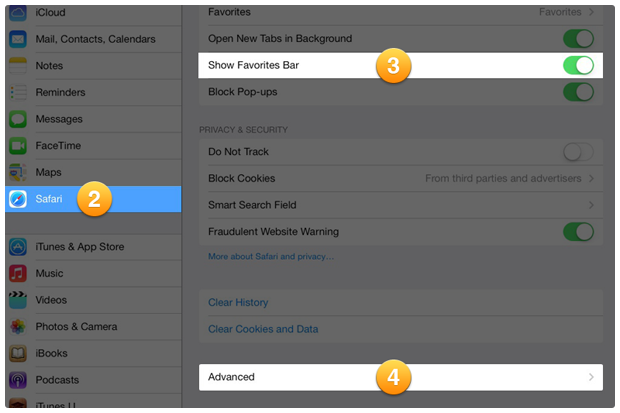
- 1Open Settings App
- 2Tap Safari
- 3Turn "Show Favorites Bar" on
- 4Tap "Advanced"
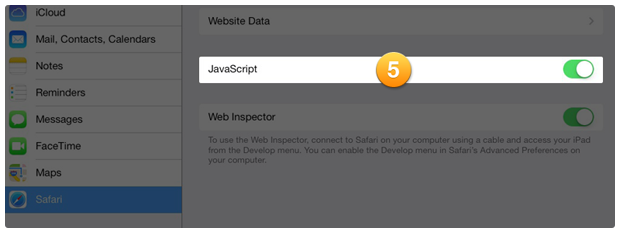
- 5Turn "JavaScript" on
Step 2: Bookmark this page
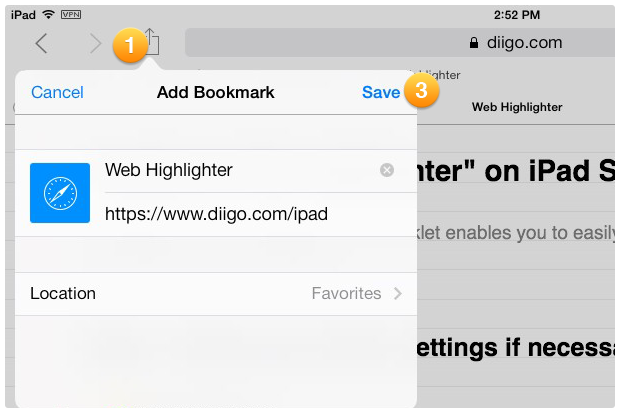
- 1Tap the "Action" icon in the Safari toolbar
- 2Tap "Bookmark"
- 3Choose "Favorites Bar", then click "Save"
Step 3: Edit the bookmark
- 1 Copy this code :
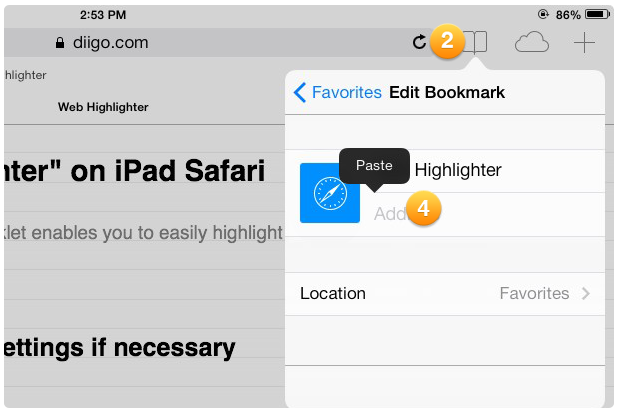
javascript:s=document.createElement('script');s.type='text/javascript';s.src='http://www.diigo.com/javascripts/webtoolbar/diigolet_b_h_ipad.js';document.body.appendChild(s); - 2Tap the bookmark icon in the Safari toolbar
- 3Tap "Edit", then select the "Web Highlighter" (The bookmark that you just created in step 1)
- 4Tap its URL, then tap the "x" to clear it
- 5Tap and hold URL field for the magnifying glass, then tap "Paste"
- 6Back to the list, then tap "Done" to save changes
Step 4: Done!
You've enabled the Web Highlighter for iPad. You can test it on this page now!
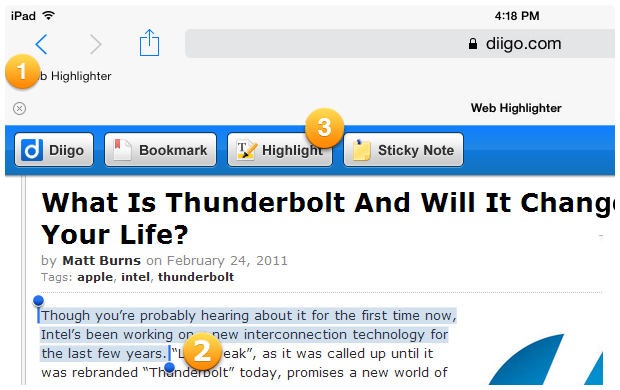
- 1Tap the Web Highlighter in the bookmarks bar, then a toolbar will show up
- 2Select some text on page
- 3Tap the Highlight button in the toolbar to highlight the text