


13 items | 1 visits
Articles and tools for freelancers in the fields of SEO, PPC, b2b, Social Media, etc.
Updated on Jul 21, 11
Created on Jul 21, 11
Category: Business & Finance
URL:


Basecamp is online project management software. People can create, manage and communicate tasks, files and to-do lists. Basecamp offers a way to improve project communication. Use it to keep your teammates and clients informed about what’s going on with your projects. With a focus on simplicity and communication, it’s an enjoyable tool to use. Basecamp is not the most extended project management tools but it is one of the easiest to use. Which is important because you’re clients might be first-time users.

This online project management system that allows you to stay up-to-date on task and connect with your team. It provides with a huge list of features including messages, to-do lists, reminders, file management, iCal support etc. It enables you to add unlimited clients and users to each project. You can also create documents using its Spot2Jot feature and then share it with all your connections.

Smartsheet allows you to track and manage work in familiar smartsheet and calendar views. You can also upload files, track discussions, and share online with co-workers, clients, contractors, vendors etc. Using smartsheet you can set reminders and receive notifications when things change, generate filtered reports across all the work you manage and instantly find anything you’re tracking using search.

Staction is a simple, but advanced way for groups of people to keep eachother up to date on the work they’re doing. How can you talk about project management without mentioning Basecamp? It’s really set a standard, and a high bar. Staction isn’t a me-too app. It’s not fixing what’s broken with Basecamp, -it’s a different way of looking at how groups get work done. Basecamp is about the project, and about the granular nugget of information. Staction is about the aerial view. With Basecamp you’re in the trenches. With Staction, you’re in the clouds. Of course we think it’s better, -or we wouldn’t have bothered to build it.

Managing tasks is generally not a fun way to spend your time. Remember The Milk helps you so that you no longer have to write your to-do lists on sticky notes, whiteboards, random scraps of paper, or the back of your hand. Remember The Milk makes managing tasks an enjoyable experience. Remember the Milk has more features and looks nicer than most of its competitors. The many features of the service makes it also a bit more complicated than for example ta-da list.

5pm is an entirely web based project management solution that is designed to effortlessly manage projects of varying complexities. 5pm displays an intuitive approach to the complicated task of project management, allowing its users to seamlessly handle users and groups across projects with minimum effort. It boasts of an interface that can be easily customized and has a stylish timeline view.

Huddle is a network of Online workspaces that brings project management software, online collaboration and document sharing together. Huddle gives you simple, secure online workspaces containing powerful project and collaboration tools. Huddle is hosted, there’s no software to download and it’s free to get started.

There are too many ideas in the world, and not enough action. Without organization and productivity, brilliant ideas never happen. Action Method Online is a radically different approach to productivity, designed to simplify project management and life.

Subernova makes you more productive by taking the stress out of remembering important details of your projects, lets you track your time, collaborate with team mates or clients and keeps your business smooth by keeping tabs on your invoices, deadlines and more.

Task.fm is a really simple reminder and task management tool. Use task.fm to create reminders that can be delivered via sms, email or voice call. Task.fm is smart enough to understand your natural language so you don’t need to bother entering dates or times manually. Instead, just type something like “meeting with bob next Tuesday at noon” and we will pick out the date, time and event automatically. You can create reminders on the task.fm site, through email or Twitter.

Backpack is an easy intranet for your business. Very easy to setup and use service that integrates to-do lists, notes, files, images, and a calendar with reminders that can be sent to your email or cell. Safe and secure. The main difference between Backpack and other competing applications, such as Google Apps, is the lack of functionality available with the free version. Backpack isn’t quite as generous when it comes to free functionality so, unless you are willing to hand over your credit card information, you won’t be experiencing the full features. The free features that are available, such as the calender and writeboard functions, do work well, but they are the very least of what could be expected from such a product and nothing worth writing home about.

It’s a free online calendar powered by Google, it’s easy to keep track of life’s important events all in one place. It helps you to organize your schedule and share events with friends, so you’ll always know exactly what you need to be working on.

Harvest lets you and your staff track time, log expenses, and create invoices in one simple, integrated workflow. Set yourself or your team up on Harvest in just a few minutes, and instantly start tracking time and expenses. Use the Harvest graphical reports to see the distribution of your company’s resources in a visual, intuitive way. Quickly create an invoice, and with just a single click, bill your client. You’ll see your revenue come in faster with Harvest. Give Harvest a try and improve your business today.

Ta-da List is the web’s easiest to-do list tool. Make lists for yourself or share them with others. It couldn’t be simpler. When you’re busy with lots of projects, it can be hard to keep track of what you’ve accomplished. Make web-based ta-da lists for yourself or other people, then share them and check items off as you go.

RescueTime is a web-based time management and analytics tool for knowledge workers who want to be more efficient and productive. The best way to get a sense of how it works for you or your team is to sign up (for free!). You’ll be up and running in a minute or two. Not yet ready to give it a try? View one of the tour videos or scroll down for some feature screenshots.

Tick is a simple and friendly time tracking application focused on helping you hit your budgets. In the service industry your hours are your inventory. Lose track of them—they spoil. Hit your budgets—move more inventory. Tick gives you the information you need, when you need it.

Freckle is a time tracking application. It is designed for real people who do real work. Freckle helps you see the big picture: which days have you been working? How much, and on what? Is all that time billable time? What are your teammates and employees doing?

The Invoice Machine takes a new clever approach to online invoicing. It’s beautiful and simple-to-use interface makes producing professional looking invoices a very pleasant experience.

Very popular and first choice. freshbooks deliver fast and simple invoicing and time tracking services that help you manage your business. freshbooks believes running a business is hard enough. We believe financial record keeping should be easy, fast, (and perhaps even fun), but still detailed enough to satisfy your accountant.

Blinksale is perfect for anyone who needs to invoice clients for services or products sold. Blinksale is an excellent choice for attorneys, accountants, designers, IT professionals, software developers, journalists, contractors, engineers, architects, videographers, and more. Basically, if you need to send invoices, Blinksale can work for you.

Intuit Billing Manager is the fast, easy, FREE way to manage your invoicing online. Use the Billing Manager web site to create customized, professional invoices, send them by email and track payment history and status — all on one place. Spend less time on your paperwork and more time on your customers.

Using Ballpark is going to be your daily bottom of the ninth, full count, walk-off home run moment of invoice zen. It makes it easier than ever to collaboratively send invoices and estimates, keep track of current and future projects, and compress all those email threads into one coherent conversation. Equally useful for teams of one, ten, or one hundred, it’s built for everyone from freelancers to glossy agencies. You’ll feel more organized from start to finish.

Zoho Invoice has gained the loyalty and trust of companies and the individuals around the world by providing a feature-rich and user friendly interface. Quickly, easily send elegantly formatted invoices and quotes to your clients. Track invoices, send reminders, accept payments online and acknowledge receipts.

If you’re looking for a quick and easy way to invoice your Basecamp time, Simply Invoices is worth a look.

LessAccounting is a small business accounting software. After logging into Less Accounting, the dashboard is your home page. From the dashboard you can see an expense overview, chart cash flow, see which invoices haven’t been paid and see what expenses need to be paid. Allows you to track expenses and send Invoices & Proposals (html and pdf, download pdfs). Tracking expenses is easy with nightly bank data aggregation. Includes iPhone application and integration to a wide range of popular business applications.

Mint does what most people hate to do manage their money intelligently and that too free of cost. It saves people from spending hundreds of dollars on hiring finance professionals to understand where they spent their money and the hours one spends wondering where all the hard-earned money disappeared. Once a person sets up his or her Mint account, the site collates their bank account data and credit card data, processes it, and displays the financial state in an intuitive and easy-to-understand manner. What’s more is that Mint does not just provide the user with the vanilla savings and spending balance sheet; it gives them excellent insights on how to manage their money.

Wesabe is part money management tool, part community. Wesabe gives you the tools and the insights to take control of your finances. See all your bank and credit card balances in one place and learn ways to get ahead.

QuickBooks Online is your source for online accounting software that is more than accounting software! It’s an easy- to-use, online version of America’s most popular accounting software. And your accounting is free with our free trial of QuickBooks Online; it’s a great way to manage the online accounting of a new business. And our accounting versions are so feature-rich they’re an excellent way to take care of all your accounting online, without the need to install accounting software on your computer.

Xero is an online accounting system designed for small businesses and their advisors.
It’s simple, smart and secure. It really is one of the best ways to keep all of your finance and invoicing in check.

Pulse is the easy way to manage your cash flow online, allowing you to quickly manage and evaluate your income and expenses. Pulse empowers you to make decisions. While other accounting tools let you track your financials, they don’t give you the ability to make the tough day to day decisions that happen when running a small business.

Worketc run your entire business originally came from a small, but rapidly expanding web design business. As business owners, worketc quickly realized how challenging growth is and set about putting in place the systems and processes that would allow our little business to become a big business.

Geezeo is a leading software services provider for banks and credit unions. We help organizations engage their base, reach new markets, and increase wallet share. Their primary focus is to provide services and technologies that enable the clients to activate their target audiences—to participate in sound financial decision making, engage in community discussions, take advantage of relevant products and services, and create a more valuable customer experience.

PayPal allows any business or consumer with an email address to securely, conveniently and cost-effectively send and receive payments online. PayPal is an e-commerce business allowing payments and money transfers to be made through the Internet. PayPal serves as an electronic alternative to traditional paper methods such as cheques and money orders. A PayPal account can be funded with an electronic debit from a bank account or by a credit card. The recipient of a PayPal transfer can either request a check from PayPal, establish their own PayPal deposit account or request a transfer to their bank account. PayPal is an example of a payment intermediary service that facilitates worldwide e-commerce.

Google Checkout is an online payment processing service provided by Google aimed at simplifying the process of paying for online purchases. Users store their credit or debit card and shipping information in their Google Account, so that they can purchase at participating stores at the click of a button. Google Checkout also offers fraud protection, as well a unified page for tracking purchases and their status.
People have been Googling each other for so long that we've turned the seemingly random word ‘Googling’ into an everyday verb. Any way you slice it, people are going to look for you online to learn more about who you are and there is nothing you can do to stop it. Potential employers, the admission staff at the college you want to go to, the neighbor who just moved in next door and even that girl you asked out.
You can’t stop them from looking, but you can control what they find. By creating a strong online profile you can dominate the first spaces of the search results with the pages you choose. The leaders in this space are Facebook, Twitter, Linkedin and of course – Google Profiles.
Google profiles have been around a long time at this point and we’re bringing them to your attention now because they rolled out a big update. The user interface is easier to navigate and gives you more room to add images and details about yourself.
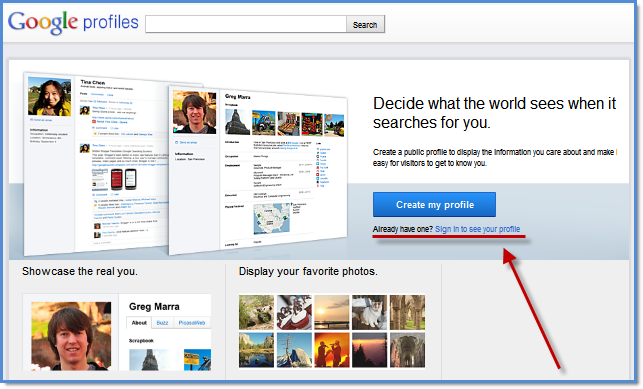
If you aren't familiar with Google Profiles, then add this to your to do list for April. Filling out your profile with Google allows you to snag a top search result listing for your name.
By adding more images to your Google Profile you will also have the opportunity to dominate the image results for you name – making it less likely someone will stumble across old images you’d rather not have them found. It also protects you from a cyber attack on your reputation.
Here are the top six listings on Google for the name, Kristi Hagen. As you can see the Kristi Hagen that works at Planet Ocean has snagged three of the top six spots and her Google Profile is the most eye catching because it includes an image.
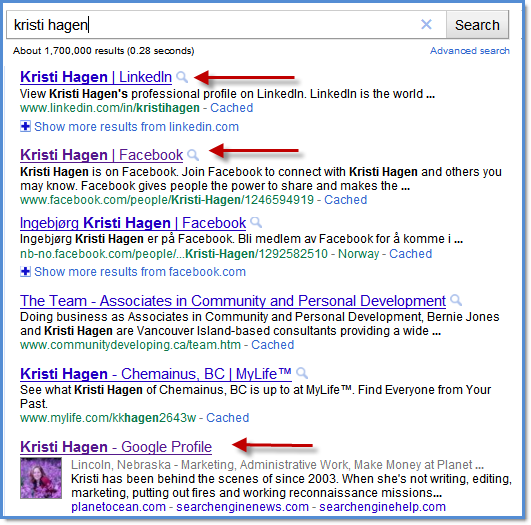
This move by Google to updated Google Profiles is a great reminder that you and your clients need to be sure to manage your online profile. Get this done by beginning with the easy things -like filling out your Google Profile, which will only take 15 minutes and a good picture :)
This article covers four key factors that can help you process your email more efficiently—both at home and at the office. Although some of the productivity tools mentioned here are specific to Microsoft Outlook (Outlook 2010, Outlook 2007, and Outlook Web Access), most of the techniques—and even the organizational attitude described here—can help you to more efficiently process email and empty your Inbox, even if you use an email application other than Outlook.
The first step toward an organized Inbox is understanding the difference between reference information and action information.
Reference information is information that is not required to complete an action; it is information that you keep in case you need it later. Reference information is stored in your reference system—an email reference folder, your My Documents folder, or a company intranet site, for example.
Action information is information you must have to complete an action. Action information is stored with the action, either on your to-do list or on your Calendar. (If the action needed is a detailed reply, try converting information into professional communication using these tips on Creating incredible documents more easily using Office 2010.
Most people receive a considerable amount of reference information through email. Sometimes as much as one-third of your email is reference information. So it is essential to have a system that makes it easy to transfer messages from your Inbox into your email reference system—a series of email file folders where you store reference information to ensure you have easy access to it later. Learn more about setting up a reference system.
After you take care of filing your reference information, you can use the next three steps to handle the email that you have to do something with—your action information.
How many times are you interrupted every day? It's nearly impossible to complete anything when there are constant interruptions from the phone, people stopping by your office, and instant messaging. So it's critical that you set aside uninterrupted time to process and organize your email.
Many email messages require you to make a decision. The best decisions require focus, and focus requires uninterrupted attention. Establish a regular time each day to process your email so that you can empty your Inbox. Of course, you can scan your email during the day for urgent messages or requests from your boss.
Book yourself a recurring appointment for an hour a day to process email, and mark that time as "busy." During that hour, don't answer the phone or take interruptions, and work only on processing your Inbox. You can also turn off the audio alert that sounds each time you receive a new email—which can be a distraction in itself. In Outlook, click the File tab. Click Options. On the Mail tab, under Message arrival, clear the Play a sound check box.
At first, keeping these appointments will take discipline. But over time, the discipline becomes habit. And after you completely empty your Inbox, you'll see the value of this one hour a day and you'll stick to it like glue.
Microsoft Outlook 2010 makes it easier to keep this email appointment and to process your Inbox. The new anywhere access features of Outlook 2010 mean that you don’t have to be at home or at the office to keep your daily email management appointment.
Conversation view in Office 2010 enables you to organize email folders by date and conversation. When Conversation view is turned on, messages that share the same subject appear as conversations that can be viewed as expanded or collapsed, helping you to quickly review and act on messages or complete conversations.
Also, improved search tools in Office 2010 make it easier to narrow your search results by using criteria, like sender or subject keywords, and other information, such as attachments. The Search Tools contextual tab includes a set of filters that efficiently focus your search to isolate the items that you want. For more information, see Find a message or item by using Instant Search.

Instant Search in Outlook 2010 provides many ways to search your email for specific messages.
When you sit down to process your email, the first step is to sort it by the order in which you will process it. For example, you can filter by date, by subject, or even by the sender or receiver of the email message. In Outlook 2010, on the View tab, in the Arrangement group, click the arrangement option you want.

From the View tab, you can filter your email by date, category, sender or receiver, and more.
You can also change the arrangement directly from your Inbox. To display the list of options, under the Search box, right-click the Arrange By: box.

The Arrange By: box in your Inbox gives you convenient access to even more options to arrange your messages.

Tip: If you use Outlook 2010, enable the reading pane (called the preview pane in Outlook 2007) so that you can view your messages without having to open them. To enable the reading pane, on the View tab, in the Layout group, click Reading Pane. To enable the Outlook 2007 preview pane, on the View menu, click AutoPreview.
Resist the temptation to jump around in your Inbox in no particular order. Begin processing the message at the top of your Inbox and only move to the second one after you've handled the first. This can be hard at first, when you might have thousands of messages in your Inbox. But as you reduce the number of messages over a few sessions, eventually you'll get to the point where you can process the 60–100 messages you get every day and regularly get your Inbox down to zero.
The "Four Ds for Decision-Making" model (4 Ds) is a valuable tool for processing email, helping you to quickly decide what action to take with each item and how to remove it from your Inbox.
The expanded Ribbon in Office 2010 is designed to help you quickly find the tools that you need to complete your tasks. Features are organized in logical groups collected together under tabs. You can also customize the Ribbon to include tabs you personalize to match your own style.

The expanded Ribbon in Outlook 2010 replaces Outlook 2007 menus, giving you easy access to tools on conveniently organized tabs.
The Quick Steps feature, new in Outlook 2010, speeds up managing your email even more. This feature enables you to perform the multi-stepped tasks you use most often, such as moving email to a specific folder or moving a message and replying to it with a meeting request, with a single click. The Quick Steps gallery includes buttons for one-click file and flag, sending messages to your team, and other popular commands. For more information, see Automate common or repetitive tasks with Quick Steps.

The Quick Steps feature turns your most frequent tasks—whether forwarding messages to your co-workers or copying messages to a specific folder—into one-click operations.
Tip: Learning a few basic keyboard shortcuts in Outlook 2010 can make performing these tasks even easier and faster. Read our article on how to save time with quick computer shortcuts.
How many times have you opened, reviewed, and closed the same email message or conversation? Those messages are getting lots of attention but very little action. It is better to handle each email message only once before taking action—which means you have to decide what to do with it and where to put it. With the 4 Ds model, you have four choices:
Generally, you can delete about half of all the email you get. But some of you shudder when you hear the phrase "delete email." You're hesitant to delete messages for fear that you might need them at some point. That's understandable, but ask yourself honestly: What percentage of information that you keep do you actually use?
If you do use a large percentage of what you keep, your method is working. But many of us keep a lot more than we use. Here are some questions to ask yourself to help you decide what to delete:
Does the message relate to a meaningful objective you're currently working on? If not, you can probably delete it. Why keep information that doesn't relate to your main focus?
Does the message contain information you can find elsewhere? If so, delete it.
Does the message contain information that you will refer to within the next six months? If not, delete it.
Does the message contain information that you're required to keep? If not, delete it.
Outlook 2010 helps you get rid of the “noise” in your Inbox by providing two new commands: Ignore Conversation and Clean Up Conversation. If a conversation is no longer relevant, you can prevent additional responses from appearing in your Inbox. The Ignore command moves the whole conversation and any future messages that arrive in the conversation to the Deleted Items folder.

Easily delete an entire conversation so that no new responses to it will appear in your Inbox.
When a message contains all the previous messages in the conversation, you can click Clean Up to eliminate redundant messages. For example, as people reply to a conversation, the response is at the top and the previous messages in the conversation are below. Use the Clean Up command to keep only the most recent message that includes the whole conversation. For more information, see Use Conversation Clean Up to eliminate redundant messages.

Cleaning up your conversations makes it easier to stay focused on the task being discussed.
If you can't delete the email messages, ask yourself, "What specific action do I need to take?" and "Can I do it in less than two minutes?" If you can, just do it.
There is no point in filing an email or closing an email if you can complete the associated task in less than two minutes. Try it out—see how much mail you can process in less than two minutes. I think you will be extremely surprised and happy with the results. You could file the message, you could respond to the message, or you could make a phone call. You can probably handle about one-third of your email messages in less than two minutes.
Office 2010 helps you respond to email messages faster. You can view the availability of a person and instantly reach out to them using a variety of communication methods—all on a new easy-to-access contact card. You can even customize the context menu of the contact card to include tasks you perform most often, saving you more time.
If you can't delete it or do it in two minutes or less, can you forward the email to an appropriate team member who can take care of the task?
If you can delegate it (forward it to another team member to handle), do so right away. You should be able to compose and send the delegating message in about two minutes. After you have forwarded the message, delete the original message or move it into your email reference system.
If you cannot delete it, do it in less than two minutes, or delegate it, the action required is something that only you can accomplish and that will take more than two minutes. Because this is your dedicated email processing time, you need to defer it and deal with it after you are done processing your email. You’ll probably find that about 20 percent of your email messages have to be deferred.
There are two things you can do to defer a message: Turn it into an actionable task, or turn it into an appointment. When you're using Outlook, you can defer emails that require action by dragging the messages to your Task List to turn them into tasks. Name the task to clearly state the required action so that you don't have to reopen the email message. The result is a clearly defined list of actions on your Task List that you can prioritize and schedule to complete on your Calendar. Or you can turn the message into a meeting request by dragging it to your Calendar.
Tip: Use the To-Do Bar in Outlook 2010 and Outlook 2007 to drag an email message from an email folder to a date on your Calendar or to your Task List. On the View tab, in the Layout group, click the To-Do Bar. When the bar appears, drag the message to your Calendar or to your Task List. This copies the message to the new location; it doesn’t move it out of the original mail folder, so you’ll still be able to find what you need. Learn more about managing your Task List in Outlook.
Using the 4 Ds model on a daily basis makes it easier to handle a large quantity of email. Our experience shows that, on average, people can process about 100 email messages an hour. If you receive 40 to 100 messages per day, all you need is one hour of uninterrupted email processing time to get through your Inbox. Our statistics show that of the email you receive:
Fifty percent can be deleted or filed.
Thirty percent can be delegated or completed in less than two minutes.
Twenty percent can be deferred to your Task List or Calendar to complete later.
Of course, if you have a backlog of hundreds of messages, it will take time to get to the point where your daily routine keeps you up to date. It's important to get that backlog down, so I would suggest setting blocks of time aside to work through it. Then, you can really enjoy processing your messages every day using the 4 Ds.
via @Sphinn: How to use Twitter to grow your online business http://tinyurl.com/cpl2wv
Learn the basics about website content and more from Internet Law 101, Part 1 - Search Engine Watch (SEW) - http://shar.es/a3ZqW
Getting some good tips from Redesign Solutions for SEO from Enquiro - http://shar.es/a3w9L
Photoshop Tutorials 90 Places to Submit | You The Designer #ps #tuts #tips #tools http://weblittlepieces.com/1294/
Must read for both business owners and SEOers! Strategy Challenges for Effective Online Marketers, Part 1 - ClickZ - http://shar.es/1x5yI ClickZ is a GREAT organization and you can learn a ton from them.
Tips for Successful Article Marketing - http://tinyurl.com/d9bvcb (Latest blog post) the SEO Consultant Specialist
10 Simple Steps to Landing More Gigs | FreelanceSwitch #freelancing #tips http://weblittlepieces.com/1305/
Almost an SEO Rocket Scientist - and you still don't do these 3 things http://bit.ly/5Fka7 from Search Engine People, Toronto
Another Cool Backlink Checker: Page Inlink Analyzer http://bit.ly/jB5B9
13 items | 1 visits
Articles and tools for freelancers in the fields of SEO, PPC, b2b, Social Media, etc.
Updated on Jul 21, 11
Created on Jul 21, 11
Category: Business & Finance
URL: