
This link has been bookmarked by 95 people . It was first bookmarked on 29 Apr 2006, by someone privately.
-
28 Mar 11

-
14 Jan 11
-
02 Jul 10
-
11 Aug 09
-
16 Dec 08
-
30 Oct 08
-
09 Oct 08
-
15 Jul 08
-
16 May 08
-
24 Mar 08
-
15 Mar 08
-
12 Feb 08
-
08 Jan 08
-
01 Jan 08
-
17 Sep 07
-
26 Jul 07
-
02 Apr 07
-
- Mount your encrypted drive
- Copy your stuff off it to your C: drive or whatever
- Dismount your encrypted drive
- Delete everything from your thumb drive (ie the truecrypt files and your data.tc file)
- Copy your stuff back to your thumb drive
pdate 26-July-2006
Someone asked about removing this once it's installed. It's quite simple. Here's what to do: -
- Run TrueCrypt from your start menu and click "Create Volume".
- Choose "Create a standard TrueCrypt volume" (the default).
- Type L:\data.tc at "Volume Location" where L is the drive letter of your flash drive.
- Choose your favourite encryption algorithm. (Don't ask me!)
- Select a volume size. This is how much space you will have on your encrypted volume.
I like to make it fill the entire remaining space on the thumb drive. You make it fill it exactly by doing this:
- Get the free space in bytes of your flash drive by right clicking it in My Computer and clicking "Properties".
- Divide this number by 1024 to get kilobytes.
- Back in TrueCrypt, select KB and type the number.
- Make up a password and enter it. Remember your password because there is no way to crack it. That's the point of secure encryption.
- Wiggle your mouse a bit for extra randomness, then click "Format".
- When formatting is finished click "Exit" to exit.
- This concludes the setup process. The hard part is now over!
- Remove your thumb drive in the usual way. (Click the "Safely Remove Hardware" icon in your Systray, select the drive to remove, then yank it out).
- Put it back in again. If the autoplay stuff is working you should see this:
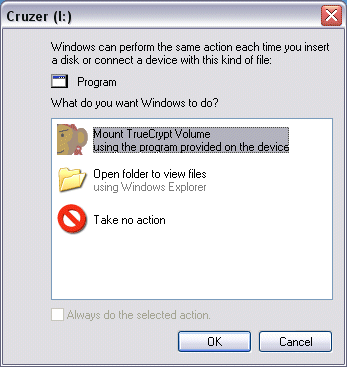
- Click OK. You should then see this:
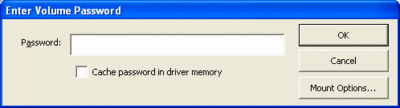
- Enter your password and up comes your encrypted drive. Voila!
- You can now put all your files back on it. They are now securely encrypted and can't be accessed without your password.
- To dismount
- Go to My Computer. Right click on your flash drive icon.
- Notice the menu options include Mount, Autoplay, Dismount and Run TrueCrypt.
- Choose Dismount to dismount the volume.
- Other notes
- Note that to open your flash drive now you have to right click and choose Open because a double click will run the Mount shell extension.
- You can also mount and dismount and change your password from the TrueCrypt program on your thumb drive. Read the TrueCrypt manual for more information.
Note: If you come to a PC where your chosen drive letter is already taken you can run TrueCrypt manually and mount your drive with a different drive letter.
- You can backup all your secure data just by copying your data.tc to your C: drive.
- I recommend adding a shortcut (to your real drive, not the virtual one) to your Quick Launch Bar for convenience. You can then access the right click menu from the shortcut.
Creating the encrypted volume
Note: If you didn't bother to install TrueCrypt in step 2, you can just double click TrueCrypt Format.exe in the Setup Files folder.
Usage
-
- TrueCrypt. Download here.
- Windows XP with Service Pack 2. Prior to SP2 you couldn't do autoplay on removable drives. You can do everything else described here though.
- A USB thumb drive. No special requirements. Any old one will do.
- Move all your data off your usb drive so it's empty.
- Install TrueCrypt on your PC.
- From the TrueCrypt application directory (usually C:\Program Files\TrueCrypt\) copy TrueCrypt.exe to your usb drive.
- From your Windows drivers directory (probably C:\Windows\system32\drivers\) copy truecrypt.sys to your usb drive.
Note: The TrueCrypt download is a zip file. Inside the zip file is a folder called Setup Files that contains both TrueCrypt.exe and truescrypt.sys so it's possible to skip steps 2, 3 and 4 above and just copy the two files straight from that folder to your flash drive.
- Create another file on your flash drive called autorun.inf. Paste in the following:
[autorun] label=Cruzer icon=truecrypt.exe action=Mount TrueCrypt Volume open=truecrypt /v data.tc /lz /q /a /m rm /e shell=mounttc shell\mounttc=&Mount shell\mounttc\command=truecrypt /v data.tc /lz /q /a /m rm /e shell=dismounttc shell\dismounttc=&Dismount shell\dismounttc\command=truecrypt /dz /q shell=runtc shell\runtc=Run &TrueCrypt shell\runtc\command=truecrypt
- The /lz and /dz above means you will mount your encrypted volume using drive letter Z. Change Z to something else in all three places if you want to use another drive letter.
- Change the label if you want to. You can also change the icon which is the icon that your usb drive has in My Computer. (I use an .ico file that I copied to my thumb drive also).
- So far your drive should look something like this:
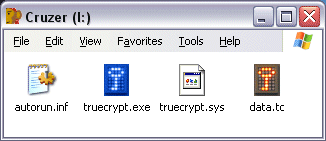 ...except for the file data.tc. That's the file that will contain all your encrypted files that we will create next.
Requirements
TrueCrypt files
Autorun file
Check the TrueCrypt manual to see what the other command line options do. You might want to tweak them to suit your preferences.
Note: In a file with more than one icon you can specify which icon you want by putting a comma then the icon number, eg icon=c:\WINDOWS\system32\SHELL32.dll,12
-
-
02 Mar 07
-
21 Feb 07

-
06 Feb 07
-
01 Feb 07
-
30 Jan 07
-
14 Dec 06
-
22 Nov 06
-
17 Nov 06
-
30 Sep 06
-
23 Sep 06
-
20 Sep 06
-
24 Aug 06
-
23 Aug 06
 Jason Marotti
I have a Sandisk Cruzer Micro USB thumb drive that I carry around with me. Last weekend I spent a bit of time setting it so that all my data is securely encrypted using the excellent open source software called TrueCrypt. Here's how I did it.
-
20 Aug 06
-
31 Jul 06
-
25 Jul 06
-
04 Jul 06
-
28 Jun 06
-
26 Jun 06
-
02 May 06
-
11 Apr 06
-
04 Apr 06
-
29 Mar 06
-
22 Mar 06
-
21 Mar 06

-
28 Feb 06
-
27 Feb 06
-
26 Feb 06
-
22 Feb 06
-
30 Nov 05




Would you like to comment?
Join Diigo for a free account, or sign in if you are already a member.